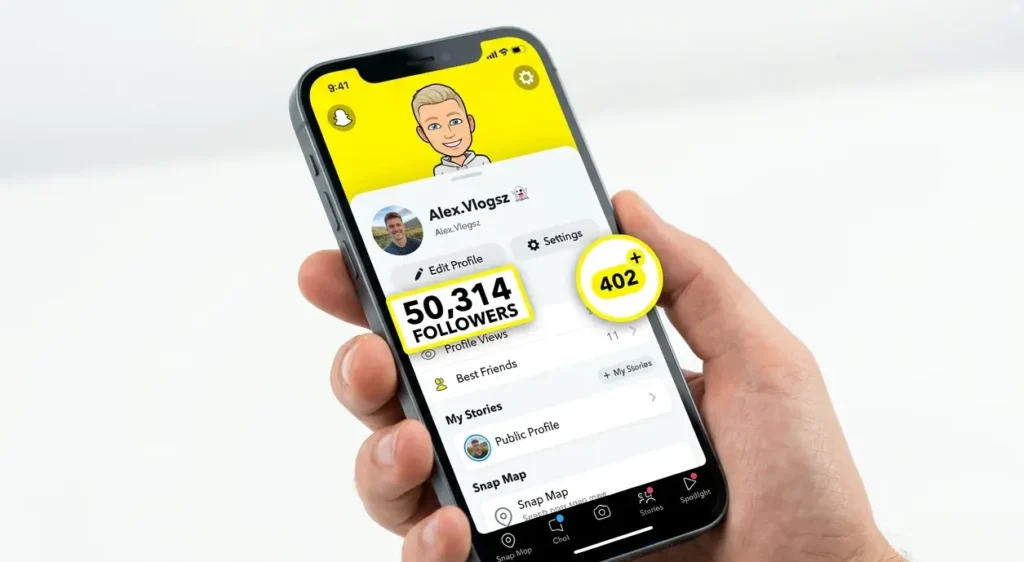
If you want to permanently delete your Snapchat account, this article will show you the complete new method to do it in 2026.
Many users want to remove their Snapchat ID permanently, and the process has a few important steps that you need to follow carefully so that your account is deleted the right way. Let’s go through the entire process step by step.
Related: Snapchat Shadow Ban & How to Fix Zero Views on Spotlight – Causes and Fixes
Step-by-Step Guide to Delete Your Snapchat Account
Step 1: Open Snapchat
First, open your Snapchat app on your phone.
Step 2: Click on Your Profile Logo
Once the app is open, you will see your profile logo at the top of the screen. Click on this logo to open your profile page.
Step 3: Note Down Your Username
After clicking on the logo, your profile page will open, and you will see your user ID and name displayed there.
It is important to write down or remember this username, because you will need to enter it later when you submit the account deletion request.
Step 4: Go to Settings
On your profile page, you will see a Settings option at the top. Click on Settings to proceed.
Step 5: Scroll Down to find Delete Account
After clicking on Settings, you will see details such as your username, date of birth, and mobile number. Scroll down on this page, and you will find the Delete Account option near the bottom.
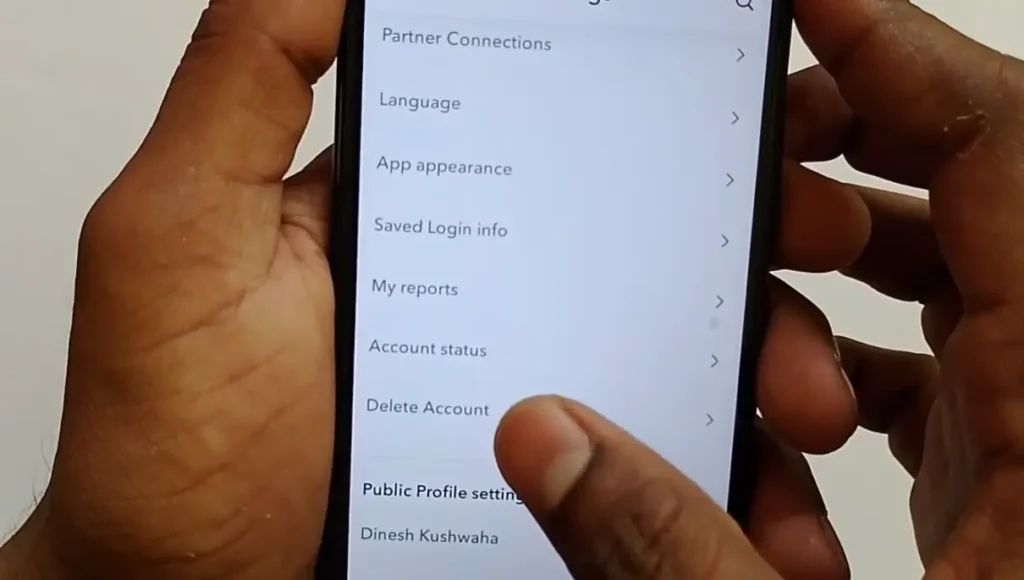
Step 6: Click on Delete Account
Click on the Delete Account option to start the deletion process.
Step 7: Enter Your Username and Log In
On the next page, you will be asked to log in to Snapchat using your username and email ID. Enter the same username that you noted down earlier, then click Next.
Step 8: Verify Your Request
After clicking Next, a verification code will be sent to your registered mobile number to confirm your request. This step is mainly used to verify and automatically log you in.
Note: This OTP verification step usually appears if you have two-factor authentication (2FA) enabled on your account. If 2FA is not turned on, you may not see this step and can move directly to entering your password.
Step 9: Enter Your Password
Next, you will be asked to enter your password. Type in your Snapchat account password and click Next again.
Step 10: Enter the OTP Code (If Required)
After entering your password, another code may be sent to your registered mobile number, depending on your account’s security settings.
Enter this OTP code, then click Next to continue. If you are not asked for this code, simply proceed to the next step.
Step 11: Confirm Account Deletion
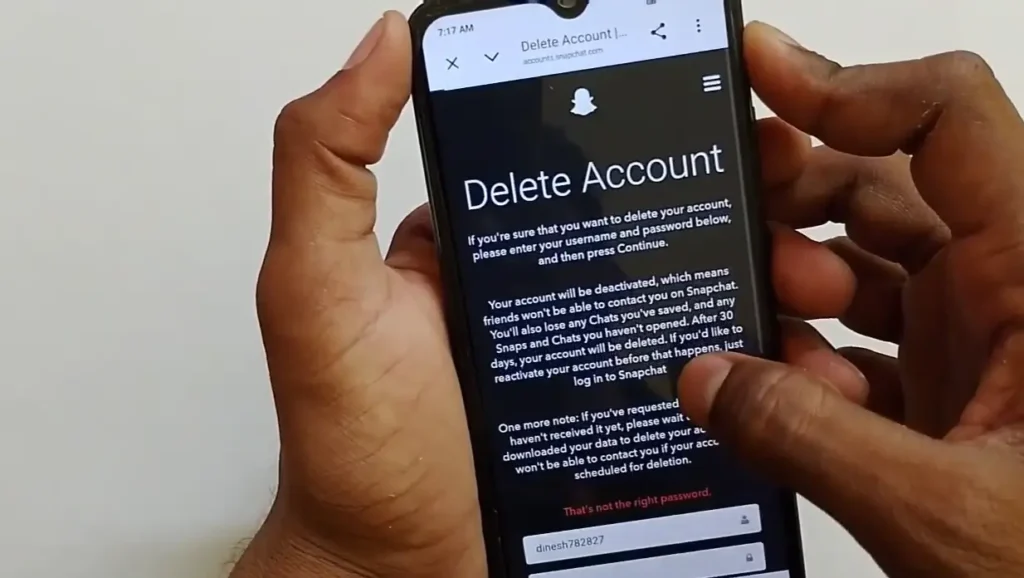
Once the OTP is verified, a page will open showing the Delete Account option for Snapchat. Your username will already be filled in automatically. You just need to enter your password again and click Continue.
Note: If you enter the wrong password, the system will not proceed. In that case, re-enter the correct password and click Continue again.
Step 12: Account Deactivated
After clicking Continue with the correct password, your Snapchat account will be deactivated, and your deletion request will be submitted.
The page will then display the message “Account Deactivated,” confirming that the process has started.
Your account is not deleted instantly. It now enters a waiting period before the permanent deletion is completed.
Important Tips
- After submitting the deletion request, your account first goes into a 30-day deactivation period. During this time, it is hidden from other users but can still be recovered.
- During these 30 days, do not log in or open your Snapchat account. If you log in during this period, the deletion process will be cancelled, and your account will be fully restored.
- Once the 30-day deactivation period passes without any login, Snapchat begins permanently deleting your account and data. For most users, this final deletion is completed within about 30 to 60 days in total, though this can vary by region.
- Make sure you remember your correct username and password before starting the process, as you will need to enter them multiple times.
- If you have two-factor authentication enabled, keep your registered mobile number accessible, as you may receive OTP codes during the process.
FAQs (People Also Ask)
Q1: How long does it take to permanently delete a Snapchat account?
Your account is first deactivated for 30 days, during which it can still be recovered. If you do not log in during this time, Snapchat proceeds with permanent deletion, which is usually completed within about 30 to 60 days in total, depending on your region.
Q2: Can I cancel my Snapchat account deletion?
Yes, if you log in to your Snapchat account within the 30-day deactivation period, the deletion request will automatically be cancelled and your account will be restored.
Q3: Will my Snapchat account be visible to others during the 30-day period?
No, once you submit the deletion request, your account becomes inactive and others cannot see it, even though it is not yet permanently deleted.
Q4: Do I need my username to delete my Snapchat account?
Yes, you need to enter your username and password during the deletion process, so make sure to note them down before starting.
Q5: What happens after the 30-day deactivation period ends?
If you have not logged in during the 30 days, Snapchat moves forward with permanently deleting your account and data. This cannot be recovered once completed.
Conclusion
Deleting your Snapchat account permanently in 2026 is a simple process if you follow the correct steps. Just go to your profile, open Settings, select Delete Account, verify your identity with your username and password (and OTP if two-factor authentication is enabled), and confirm the deletion.
Remember to avoid logging in during the 30-day deactivation period so the permanent deletion process completes successfully.
Disclaimer
This article is for informational purposes only. The steps mentioned above are based on the Snapchat app interface at the time of writing. Snapchat’s settings and account deletion process may change over time, so always refer to the official Snapchat app or support page for the most up-to-date instructions.