
If you want to know about more than 40 interesting features of Snapchat Plus, you have come to the right place. In this article, we will go through all the features available in Snapchat Plus and also explain what benefits each of them offers.
To begin, you need to open your Snapchat application. After that, tap on your profile. Once you are on your profile, you will see an option for Snapchat Plus. Tap on it, and a page will open.
Since the subscription has already been taken in this case, a particular kind of screen is shown. If you have not taken the Snapchat Plus subscription, a different kind of page will open in front of you.
Now, let us go through the different features of Snapchat Plus one by one.
Also Read: Should You Run Snapchat Ads for Your Brand? Snapchat Ads Reality
Buddy Pass
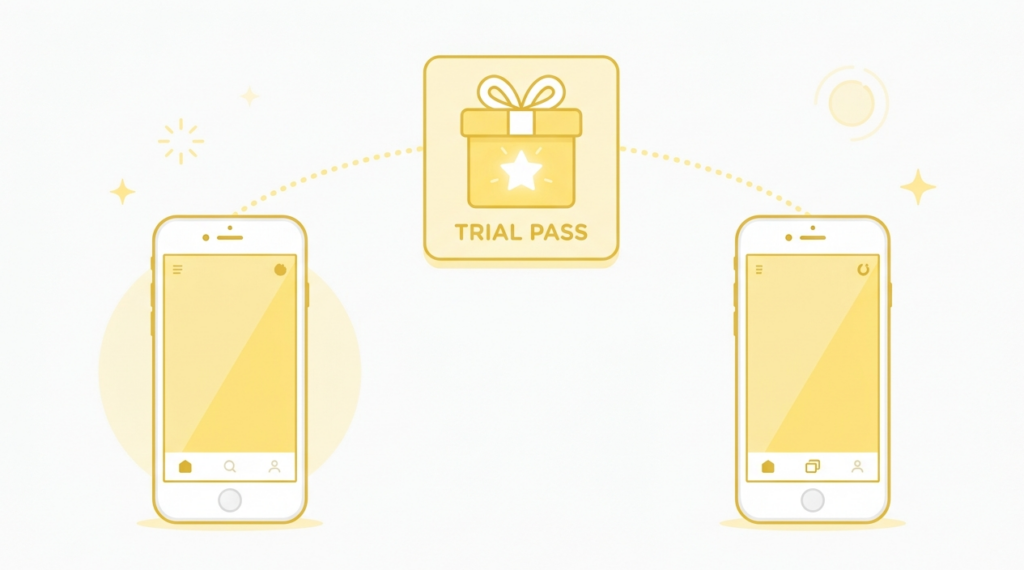
The first feature you will see inside Snapchat Plus is the Buddy Pass. The Buddy Pass is basically a free trial of Snapchat Plus that you can send to your friend. The friend you send it to can use Snapchat Plus features for free for 7 days.
For example, to send it, tap on Send Buddy Pass, then search for the friend you want to send the Buddy Pass to.
Once you find the friend, tap on Send and then tap Yes. As soon as you send it, your friend will get a notification in chat.
When your friend opens the chat, an option to claim the Buddy Pass will show up. Once your friend taps on Claim Buddy Pass, a page will open, and after claiming it, your friend will get the Snapchat Plus subscription and its features for 7 days for free.
Gift Snapchat Plus to Friends
The second feature is Gift Snapchat Plus. Using this, you can send the Snapchat Plus subscription to your friends as a gift.
Snapchat Plus Comic Bitmoji
The next feature is Comic Bitmoji. As you may already know, Snapchat Plus currently shows Bitmoji in 3D.
However, back in 2022, the Bitmoji used to be 2D instead of 3D. With the Comic Bitmoji option, you can set your Bitmoji and the Bitmoji of all your Snapchat friends to look like the older 2D style.
Custom App Theme
The next feature in Snapchat Plus is Custom App Themes. Tap on this option, and you will find different themes to choose from. Select the theme you want, tap on Apply Theme, and then tap Restart App.
Once you restart the app, your chat section and the whole of Snapchat will change into that selected theme.
Custom Chat Wallpaper/Theme
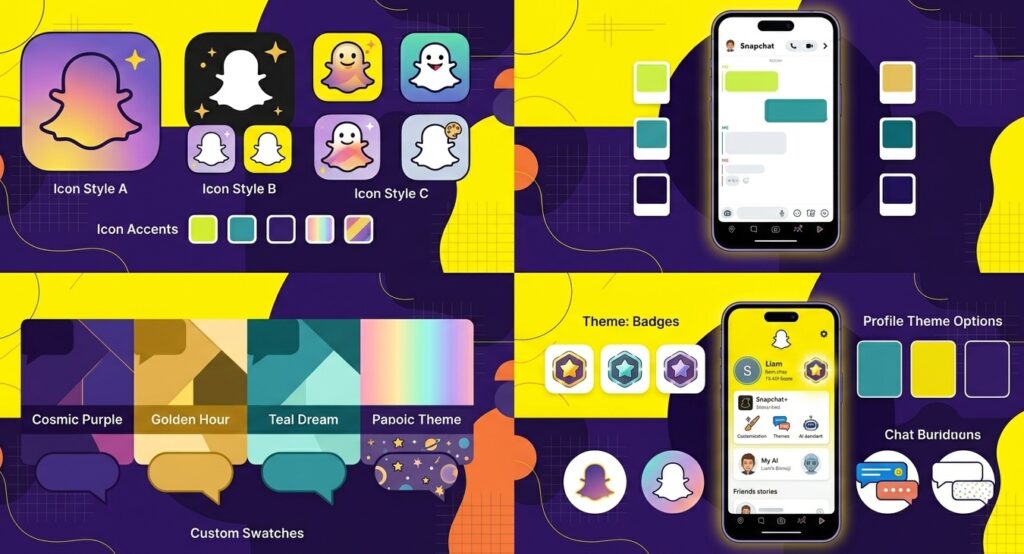
The next feature is Chat Wallpapers. Using this feature, you can set a different wallpaper or theme for the chat of each of your Snapchat friends.
You can also use a picture from your gallery and set it as a chat wallpaper. These are some of the main benefits you get if you have Snapchat Plus.
Also Read: How to Get 50,000 Followers on Snapchat: Complete Step-by-Step Guide
Pin #1 Best Friend
The next feature is Pin Best Friend. Using this feature, you can set any of your friends as your Number 1 best friend on Snapchat. Whichever friend you set as your best friend, you will see a red heart emoji next to their Bitmoji.
Post View Emoji
Next is the Post View Emoji feature. This feature is quite interesting because it lets you decide which emoji your friend will see along with their notification when you send them something.
For example, you can set a different emoji for each of your friends. Tap on a friend’s name and choose an emoji, such as a like emoji.
Once you choose it, whenever you send a snap or message to that friend, the chosen emoji will show up along with their notification.
Friends in Chat
The next feature is Friends in Chat. Using this feature, you can find out from outside your chat whether your friend is currently inside their chat section or not.
For example, if you send a message to your friend, it will go to their chat. Once your friend enters the chat, it will show that your friend has come into the chat.
If you go back outside the chat, you can use this feature to know, even from outside the chat section, whether your friend is currently inside the chat or not.
To check this, you need to look closely at your friend’s Bitmoji. If your friend’s Bitmoji is shown using a phone, it means that your friend is currently inside the chat section.
As soon as your friend leaves the chat, the emoji will change, and when they come back into the chat, their Bitmoji will again show as using a phone.
Best Friends: Solar System
The next feature is the Solar System for best friends. Using this feature, you can check how close a particular Snapchat friend is to you.
For example, go into the chat with a friend and tap on the Best Friend or BFF option. If a solar system type display shows up, it means that this particular friend is quite close to you and is one of your best friends.
Peek a Peek
The next feature is Peek a Peek, which is also quite an interesting feature. To understand it practically, send a message to one of your friends.
Normally, your friend would open the chat and read the message directly. However, there are some friends who are quite clever, and on Snapchat they enter the chat section and try to peek secretly at your message without fully opening it, just to find out what you have sent.
If your Peek a Peek feature is enabled, then as soon as you come outside the chat, you will see an eye icon on the left side of your friend’s Bitmoji. This means that your friend is secretly trying to peek at your chat.
Snapscore Change
Now let us look at the next feature of Snapchat Plus, which is Snap Score Change. If this feature is enabled, then normally, whenever you send a snap to a friend, your snap score and your friend’s snap score increase by one point.
However, if your friend also has a Snapchat Plus subscription, then enabling this feature will make your snap score and your friend’s snap score increase at double speed.
Snap Modes
The next feature is Snap Modes. Using this feature, you can decide after how much time, or instantly, the snap you send will get deleted.
To use this feature, go into your Snapchat camera, click a snap, and you will see an option there. Tap on it, and Snap Modes will open.
Here you will see two options. One is “One Time Only.” If you choose this, your friend will be able to view your snap only once and will not be able to replay it.
The other option is “View It and Lose It.” If you choose this, you can set a timer, for example 0.5 minutes, and apply it.
As soon as you send the snap to your friend, the timer you set will start. If your friend views the snap within that time, that’s fine.
Even if they don’t view it, the snap you sent will automatically get deleted once the timer runs out. If you prefer this kind of privacy, this feature will be quite helpful for you.
Custom Snapchat App Icon
The next feature is App Icons. You can change and customize the icon, or logo, of your Snapchat app. Tap on this option, and you will see different icons available on Snapchat.
Choose the one you want to keep and tap on Restart Now. Once you restart, the icon of your Snapchat app will change.
Snapstreak Restore
The next feature is Snapstreak Restore. Using this feature, you can easily check which of your friends’ streaks have recently broken.
Snapchat Plus Grey Badge
Next is the Snapchat Plus Badge. If you take a Snapchat Plus subscription, you also get a grey badge. If this is enabled, the badge will show up beside your name.
All your friends or other Snapchat users will also see this grey badge when they visit your profile. If you don’t want this badge, you can disable it by tapping on it.
Story View Notifications
Next is Story View Notifications. Using this feature, suppose you have chosen a particular friend and tapped OK.
After that, whenever you post a story and that chosen friend views your story, you will get a notification telling you that this particular person has viewed your story. This is quite an interesting feature.
Instant Streaks
The next feature is Instant Streaks. If this feature is enabled, you will get the benefit that as soon as you send a snap to your friend, a streak will start instantly.
As you all know, normally on Snapchat, to maintain a streak, you and your friend need to send snaps to each other for two to three days before a streak starts forming.
But if this feature is enabled, a streak will start instantly as soon as you send a snap to your friend, which is both interesting and useful.
Customize My Map, Pet & Car
The next feature is Customize My Map. From here, you can decide how your Bitmoji will appear on the Snapchat Map section and which pet will appear alongside you.
Tap on Choose My Pet, and you will see different pets to choose from. Whichever pet you choose, it will appear with you in the chat section whenever you chat with a friend, and your pet will appear alongside your Bitmoji there as well.
You will also see an option called Choose My Car. From here, you can choose different vehicles, and whenever you travel, your chosen vehicle will be updated on the Snapchat Map section.
There is also an option called “Show Pet Everywhere.” If you enable this, your pet will appear alongside your Bitmoji not just in the chat section but also on your profile.
Extended Best Friend List
The next feature is the Extended Best Friend List, which you can enable. As such, it isn’t a particularly useful feature.
Lightning Snaps
The next feature is Lightning Snaps. If you enable this feature, you get the benefit of sharing snaps that last for as little as 0.5 or even 0.1 seconds with your friend.
The benefit of this is that as soon as your friend opens your snap, it will disappear within a very short time.
Custom Home Tab
The next feature is the Home Tab. If you are a Snapchat user, you have probably been bothered by the fact that the camera opens first whenever you open Snapchat.
This feature solves that problem. For example, the chat section has been enabled as the home tab here, so whenever Snapchat is opened, the chat section opens directly instead of the camera.
Creative AI Tools
The next feature is AI Creative Tools. Using this feature, you can send snaps to your friends using your own creativity on Snapchat. In other words, by using AI and different prompts, you can create snaps and share them with your friends.
AI Captions
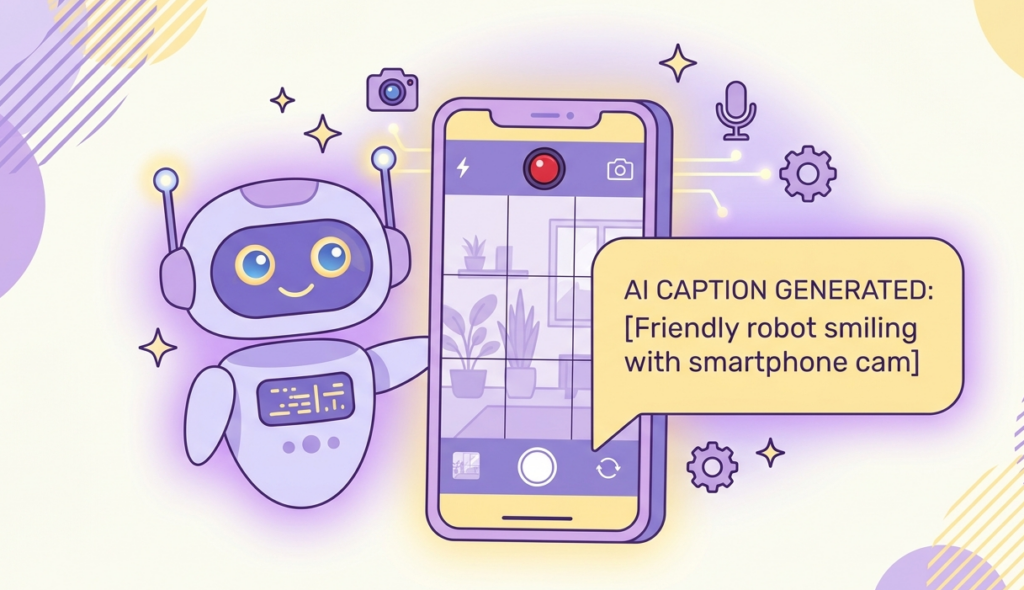
The next feature is AI Captions. With this feature, whenever you click a snap using the Snapchat camera, you can tap on the “T” option, and the AI Caption option will appear.
The benefit of this is that the AI system will look at your picture and automatically give you the best caption for it, since people are often confused about what caption to use on Snapchat. This makes it easy to set any caption.
Extended Snaps
The next feature is Extended Snaps. Using this feature, you can click snaps from different angles.
My AI Bio Influence
The next feature is Edit My AI Bio. Using this feature, you can influence how your Snapchat AI, called My AI, chats and behaves. Whatever bio you set, your Snapchat AI will behave accordingly.
For example, if you write that your My AI should behave like a physics teacher, then whenever you talk to it, it will behave and chat with you as a physics teacher.
Custom Chat Colours
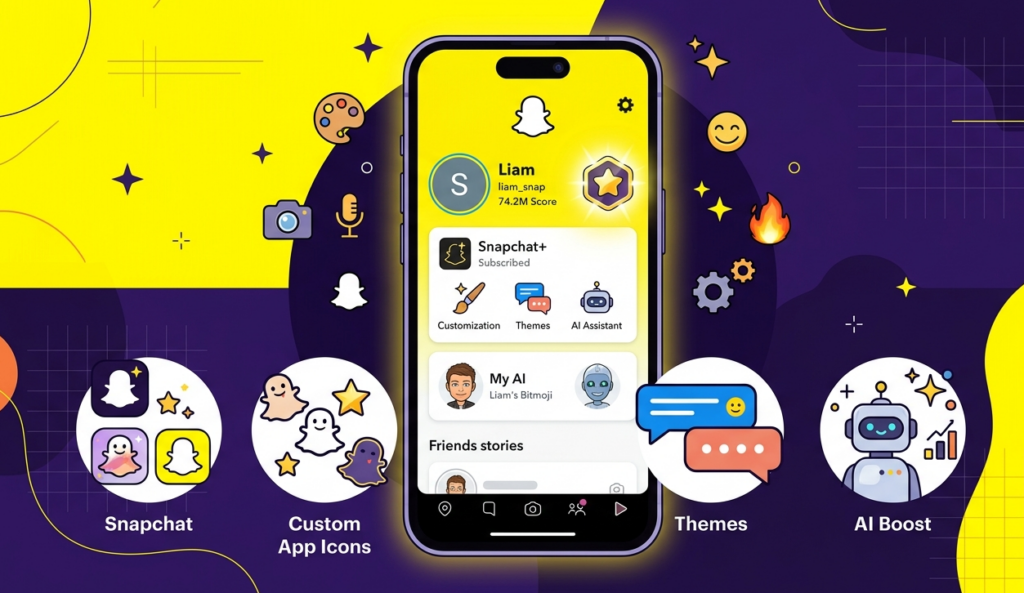
The next feature is Custom Chat Colours. From here, you can choose custom chat colours, and as soon as you choose one, the colour of that friend’s chat section will change accordingly.
Snapscore Multiplier
The next feature is the Snapscore Multiplier. If this feature is enabled, you get the benefit that whenever you share a snap with a friend who already has a Snapchat Plus subscription, your snap score will increase at a much faster speed.
Story Rewatch Count
The next feature is the Story Rewatch Count. If this option is enabled, you get the benefit that whenever you post a story, suppose five people rewatch your story, you will see a particular emoji along with the number five next to it, letting you know that five people have rewatched your story.
Story Boost
The next feature is Story Boost. Using this feature, you can boost your story among friends only, which means Snapchat will repeatedly promote your story among your friends, giving you more views.
Story Time Stamps
The next feature is Story Time Stamps. If this feature is enabled, whenever you post a story on Snapchat, the viewer list of your story will also show the time at which each friend watched your story.
Custom Story Expiry
The next feature is Custom Story Expiry. Using the Snapchat Plus subscription, you can set your story to expire after 1 hour, 12 hours, 2 days, and even up to a week.
Replay Again
The next feature is Replay Again. If you have a Snapchat Plus subscription, you get more chances to replay a snap sent by your friend.
Priority Story Replies
The next feature is Priority Story Replies. Using this feature, whenever you message a public profile or a famous celebrity on their story, your comment gets a higher chance and priority of receiving a reply.
Custom Ringtone Sounds
The next feature is Custom Ringtone Sounds. From here, you can set custom ringtones for your different friends.
This means that if one friend calls you, the ringtone will be different, and if another friend calls or messages you, the ringtone will be different too, letting you guess which friend is calling or messaging you just from the ringtone.
Custom Notification Sounds
The next feature is Custom Notification Sounds. Here, you can set custom notification sounds for your different friends.
Snapchat Plus Premium Profile Background
The next feature is Premium Profile Backgrounds. Tap on View, and you will see different backgrounds and premium wallpapers that look unique and attractive.
When you have a Snapchat Plus subscription, you can choose from different premium backgrounds and wallpapers for your profile.
We have now gone through all the features available in Snapchat Plus in a simple way.
Is Snapchat Plus Worth It?
Now coming to the question of whether you should take a Snapchat Plus subscription or not. If you use Snapchat regularly and have been using it for several years, then you can try taking the subscription at least once.
However, if you don’t use Snapchat much on a regular basis, taking a Snapchat Plus subscription may not prove to be that beneficial for you.
Snapchat Plus Purchase & Pricing
If you have decided that you want to take the Snapchat Plus subscription, go into Snapchat Plus and tap on Next.
After tapping Next, you will see two plans available: a monthly plan and an annual plan. The price of the monthly and annual plans is also shown on the same page.
Apart from this, the Snapchat Plus subscription also comes with a free trial option, where you can use a 7 day free trial.
After the free trial ends, your subscription starts according to whichever plan you had chosen, monthly or annual.
Important Tips
- The Buddy Pass lets your friend try Snapchat Plus features free for 7 days, so it is a good way to let them test the subscription before buying it themselves.
- The Peek a Peek and Friends in Chat features are useful if you want to know whether your friend is actively inside the chat without asking them directly.
- Snap Modes and Lightning Snaps are helpful if privacy and quick disappearing content matter to you.
- The Custom Home Tab feature is useful if you are tired of the camera opening first every time you launch Snapchat.
FAQs
What is the Buddy Pass in Snapchat Plus?
The Buddy Pass is a free trial of Snapchat Plus that you can send to a friend, letting them use Snapchat Plus features for 7 days for free.
Can I set different chat wallpapers for different friends in Snapchat?
Yes, with Snapchat Plus you can set a different chat wallpaper or theme for each of your friends, and you can even use a picture from your gallery.
Does Snapchat Plus help increase my Snapscore faster?
Yes, with features like Snapscore Change and the Snapscore Multiplier, your snap score can increase at double speed when interacting with friends who also have Snapchat Plus.
Is Snapchat Plus worth buying?
If you use Snapchat regularly and have been using it for years, the subscription can be worth trying. If you don’t use Snapchat much, it may not be as beneficial for you.
Conclusion
Snapchat Plus comes packed with more than 40 features, ranging from custom themes, wallpapers, and app icons to AI tools, story customization, and snap score boosters.
Whether the subscription is worth it really depends on how regularly you use Snapchat and how much value you place on these extra customization and privacy options.