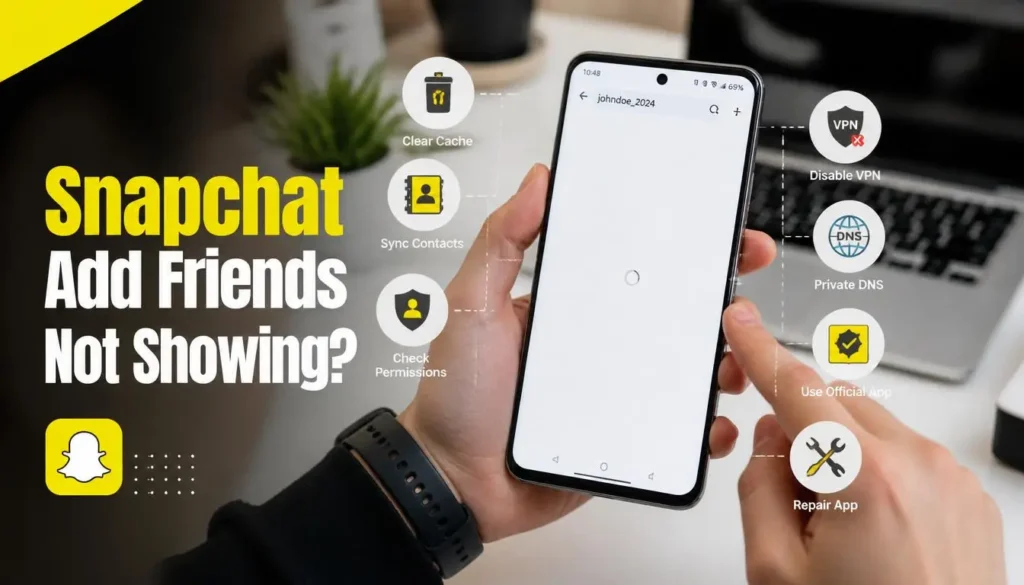
If you open Snapchat, go to the search bar, type someone’s name or username, and nothing shows up at all, you are not alone. This is a common problem that many Snapchat users face. You type something, but no IDs, no profiles, no results appear below the search bar.
The good news is that this problem has clear solutions. In this article, you will learn exactly what to do, step by step, to fix the Snapchat add friends not showing issue.
Also Read: How to Permanently Delete Your Snapchat Account in 2026 (Step-by-Step Guide)
Fix 1: Clear Snapchat Cache from Phone Settings
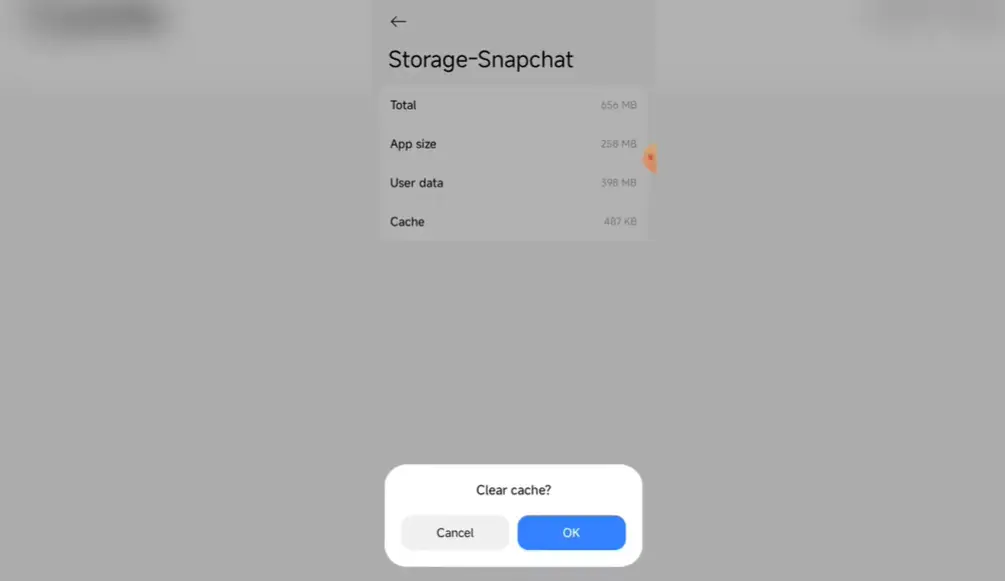
This is the first and most effective fix. Here is how to do it:
- Open your phone’s Settings.
- Scroll down and tap on Apps.
- In the search bar within Apps, type Snapchat and open it.
- Tap on Storage.
- Tap Clear Cache.
Do not tap Clear Data, only Clear Cache. After clearing the cache, go back and open Snapchat again. This alone fixes the problem for most users.
Fix 2: Remove and Re-Sync Contacts in Snapchat
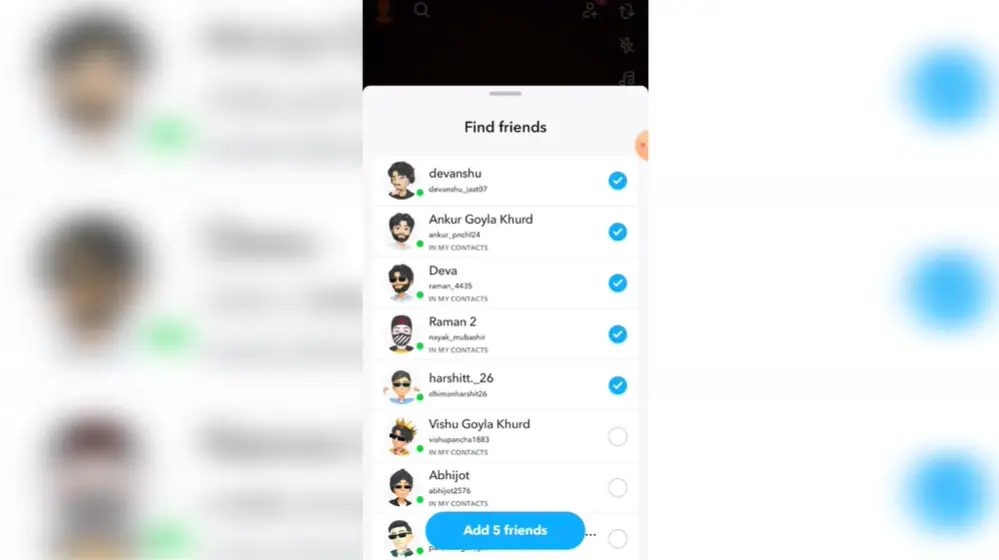
If clearing the cache did not work, try this. The issue is sometimes caused by your contacts not being properly synced with Snapchat.
- Open Snapchat.
- Tap on your Profile icon at the top left.
- Tap the Settings (gear icon).
- Look for Contact Sync. If you do not see it, type “Contact” in the Snapchat settings search bar.
- Tap on Contact Sync.
- First, tap Remove Synced Contacts from Snapchat and confirm.
- After removing, sync your contacts again.
Once you do this, your Snapchat search should start showing results. This method works for the contact-related search issue.
Fix 3: Allow Contacts Permission for Snapchat
Sometimes Snapchat does not have permission to access your contacts, which causes search results to not appear.
- Long press the Snapchat app icon on your home screen.
- Tap the “i” (info) icon.
- Go to Permissions.
- Find Contacts and check its status.
- If it shows “Don’t Allow,” change it to Allow.
- Go back and open Snapchat.
Giving Snapchat proper contact access helps it show search results correctly.
Fix 4: Turn Off Private DNS and VPN
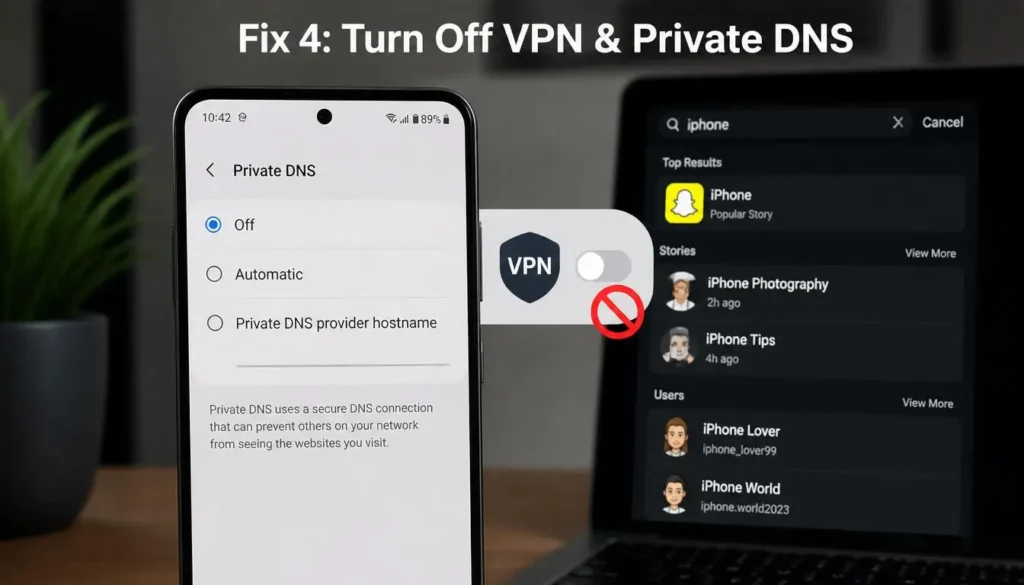
This is a less common cause but worth checking, especially if you use a VPN or have changed your DNS settings.
- Go to your phone’s Settings.
- Tap on More Connectivity (or Connections, depending on your phone).
- Find Private DNS.
- If it is set to a private provider hostname or Automatic, turn it Off.
Also, if you have a VPN running, turn it off. VPNs and custom DNS settings can interfere with Snapchat’s servers and prevent search results from loading.
Fix 5: Wait If You Sent Too Many Friend Requests
If you recently sent a large number of friend requests in a short time, Snapchat places a temporary limit on your account. During this limit, the search bar will show nothing, no matter what you type.
In this case, there is no technical fix. You just need to wait. After some time, the limit is lifted and the search will work normally again.
Fix 6: Uninstall Modded Snapchat and Use the Official App
If you are using a modded or third-party version of Snapchat, that is likely causing this problem. Modded apps often do not work properly and break core features like search and adding friends.
Uninstall the modded version and go to the Google Play Store to download the official Snapchat app. After installing the official version, the search bar and add friends feature should work fine.
FAQs
Q: Why is Snapchat not showing results when I search for friends?
A: This usually happens because of a cache issue, contacts not being synced, missing app permissions, an active VPN or private DNS, too many friend requests sent at once, or using a modded Snapchat app.
Q: Will clearing Snapchat cache delete my chats or memories?
A: No. Clearing cache only removes temporary files. Your chats, Memories, and account data are not affected.
Q: How long does Snapchat’s friend request limit last?
A: It varies, but it usually lifts after a few hours to a day. There is no way to manually remove it.
Q: Does VPN affect Snapchat search?
A: Yes. Using a VPN or custom Private DNS can block Snapchat from loading search results properly. Turn off your VPN and try again.
Q: Is it safe to use modded Snapchat?
A: No. Modded apps are unofficial, often break features, and can put your account at risk. Always use the official app from the Play Store.
Conclusion
If Snapchat is not showing any results when you try to add friends, start by clearing the app cache from your phone settings. Then re-sync your contacts inside Snapchat.
Make sure contacts permission is allowed, and turn off any VPN or Private DNS that might be active. If you recently added a lot of people, just give it some time. And if you are on a modded app, switch to the official Snapchat from the Play Store.
These 6 fixes cover every major cause of this problem and at least one of them will work for your situation.
Disclaimer: This article is for informational purposes only. The steps mentioned are based on general Android settings and may vary slightly depending on your phone model or Snapchat app version. We are not affiliated with Snapchat or Snap Inc. in any way.